[Update on 8/11/10] As was pointed out in the comments, this post is a bit out of date. The functionality of Google Forms has changed. More importantly I don't think Google Forms is the best or easiest way to add contact forms now. I highly recommend WPForms .
The one feature that WordPress doesn't provide that many businesses request is a contact form. There's many plugins out there, but for something as simple as this you don't need to use a plugin.
- Open up Google Docs and click New > Form.
- Fill out all the questions you want. A typical contact form might just include Name, Email, Message.
- Go back to the spreadsheet and click Share > Set Notification Rules. Check "email me when someone submits a form" and "email me right away"
- (Option 1) If you like Google's default form design, click "Embed" and copy the code it provides (an iframe).
- (Option 2) If you would like to customize the design of the form, go to the spreadsheet and click Form > View Live Form. Right click on the page, press "View Source," and copy the code: <form> ... </form>.
- (Simple option). Go to Wordpress, edit your Contact Page, switch to HTML view and paste the code. This will add the form to your page.
- (More difficult option) If you're a developer and don't want clients messing with the form's code, create a page template, include the code in there, and then set the contact page to that page template.
- If you chose Option 2 above, you can now use CSS to style the form to match your site.
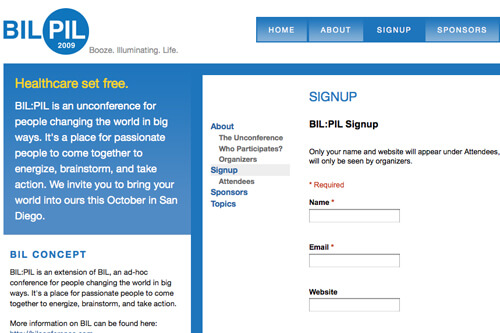
Here's an example of the form in action: http://2010.bilconference.com I just used the iframe because I didn't need to change the look of the form.
Additional feature - If you'd like to share the responses on your site (like the BIL Attendees page ), just:
- Create a new sheet on the spreadsheet (at the bottom, "Add Sheet").
- Label the columns you'd like to include at the top.
- Under the first column, type "=" then switch to the previous sheet and select the first column's contents. Press Enter. This should give you a formula the duplicates the content (something like =Sheet1!A2). Repeat for each column you'd like to share.
- Select all the cells of the first row of data, hover over the bottom right corner, click the square and drag down. This will repeat the formula across the lower cells.
- Click "Share > Publish as a Web Page." Under Sheets to Publish select "Sheet 2", and click "Start Publishing".
- Under Get a link to the published data, select "HTML to embed in a page" and copy the code.
- Open Wordpress and paste the code in the page you'd like to share it on.

No comments yet