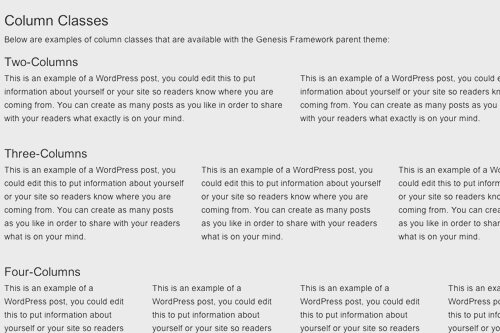
Genesis comes pre-built with a great bit of CSS called Column Classes. This allows you to easily make multiple columns of content with a bit of CSS. You can also add this to any theme with this CSS .
There's two different ways I set up client sites to use this:
- Adding Editor Styles
- Div Shortcode Plugin
Adding Editor Styles
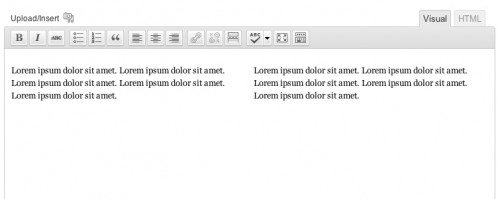
If the client is somewhat comfortable with HTML - she's not afraid to click the "HTML" tab in the editor - then I'll add the column classes to the editor's stylesheet. This will make it so the columns are visible in the editor and the client can easily see where the content she's writing will show up. I also recommend using the fullscreen editor when using this because the inline one is a bit too small.
In your theme, create a file called editor-style.css and add the column class CSS styles to it. You can also add any other styles you'd like reflected in the editor (I often add the headlines styles so the client can visually see how her h2's and h3's will look from the editor).
Then, add this to your functions.php file: add_editor_style( 'editor-style.css' );.
That's it! Now when editing a post, switch to HTML view and add this:
[gist id=1514523]
When you switch back to Visual view, your editor should look like this:
Div Shortcode Plugin
For those who get completely lost in the HTML tab, I have a plugin that let's them use [[div]] shortcodes. Once Div Shortcode Plugin is activated, they just have to write something like this in the Visual Editor:
[gist id=1514517]
The benefit here is that they can see exactly where in the Visual editor one column is ending and another is beginning. They're able to control div's without ever switching to the HTML view (where they might get lost).
Other Notes
When building out a site, I'll often create two sample pages using each technique so the client can choose which is best for her.
If every page will have the same number of columns, you might consider pre-populating the content area with default text . This way they never have to switch to HTML mode to create the columns - they are there already.
It looks like a future version of Genesis might include icons in the TinyMCE Editor for creating the columns, which will give you one more way for doing this.

No comments yet