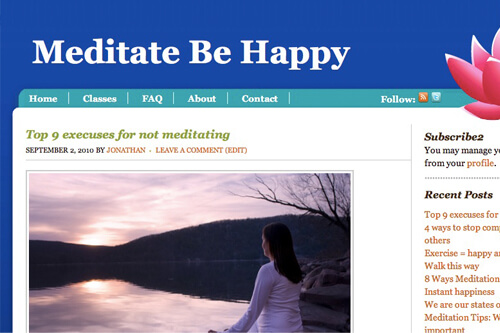
Genesis comes with a feature called Primary Navigation Extras, which let’s you stick the following at the end of the primary navigation: Date, RSS Feed, Search, or Twitter link. But for a project I’m working on now, I wanted something more custom.
This tutorial will show you how to customize the navigation area. I’ll be sticking a “Follow” section at the end of the navigation with links to an RSS feed and Twitter profile. You can use this technique to do almost anything to the navigation – stick something before it, after it, or modify the navigation’s output itself.
I’m going to walk you through the code, so skip to the end if you just want the functioning code.
Setting up the Filter
The best way to modify Genesis (and any other theme framework for that matter) is with functions attached to actions and filters. If you’d like a review, take a look at the Plugin API in the Codex.
I’m going to create a function called follow_icons() and attach it to two different filters, genesis_nav_items and wp_nav_menu_items. Which filter is actually used depends on what type of menu you select in the Genesis Options, so include them both for compatibility.
[gist id=1717517]
This code isn’t really doing anything yet. It’s pulling in the content of the nav menu and sending it right back out. The first condition of the add_filter specifies the filter you want to work with. The second is the function you want attached to that filter. The third is the priority (10 is default), and the fourth is the number of arguments used (I’m only using 1).
Add your Changes
Once you have the basic filter set up, you can jump in and add your modifications.
[gist id=1717521]
In the first line I’ve created a variable called $follow which will contain the code I’m adding, and the second line sticks my new code to the end of the existing navigation content. This just contains static text right now, which I’ll be replacing next with some more code.
[gist id=1717524]
I’ve turned the static RSS and Twitter text into links and images. Here’s what each one means:
get_bloginfo('rss_url');– This is the link to the RSS feed. The reason I didn’t hardcode an RSS feed link in is if you change your RSS feed using the Genesis Options, this will automatically be updated. This code also works on any site now, not just the one I built this for (always try and make your code easily reusable for future projects).get_bloginfo('stylesheet_directory');– This is the link to your child theme’s directory. I have an image for the RSS feed and Twitter uploaded in the images directory of the child theme.esc_url()– Any time you’re using data created by a person, you want to escape it. Escaping it ensures that untrusted text can’t do damage to your site ( more info here ). I have to thank Aaron Brazell for teaching me this.genesis_get_option('nav_extras_twitter_id')– In the Genesis Options panel, inside Primary Navigation Extras is a box to type your twitter username. This function pulls the content of that box.
From there, you can use CSS to style it how you want.
This technique can be used to do anything to the navigation. You could stick something to the beginning or modify the $output to change the navigation itself.
No comments yet