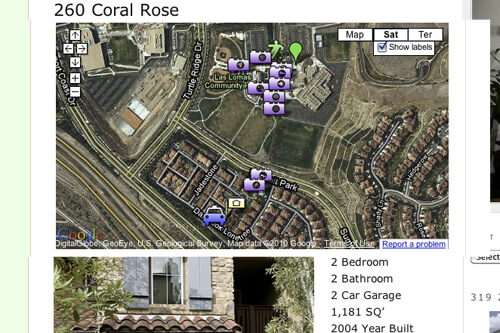
Update (May 31, 2011)
It's been a long time since this post was written and I can no longer confirm it will work. I've started using the Google Static Maps API which is a lot easier, and I recommend you try it out before attempting the below solution.
Let's say you have a real estate website, and for each real estate listing you want to include a google map. You could go to Google Maps each time, create the map, copy the embed code, and either leave your editor in HTML view or use a plugin to insert it (if you switch to Visual mode, you'll lose your code).
A better solution is to use the API to make maps dynamically from a custom field. So now when you're creating a post, just type the address you want in the "Address" custom field and google will make the map for you. You can give an exact address or even just a city.
This tutorial is only really worth it if you are creating multiple maps. If you just want a map for your contact page, I'd recommend creating a custom page template that includes the map.
So the steps we'll take are:
- Get Google Maps API Key
- Create an Options Page that holds the API key
- Create a function that generates a map from a custom field and the API key
- Add your API Key to the Options Page, and the custom field to a post
Get the Google Maps API Key
You'll need an API key for each website you use this one. Here's where you Sign Up for Google Maps API Key .
Create an Options Page that holds the API Key
I'm not going into too much detail on this step as I wrote a post already on building Custom Options Pages . Here's the code we used on a recent project:
[php]add_action('admin_menu', 'google_maps_api_menu');
function google_maps_api_menu() {
add_options_page('Google Maps API Key', 'Google Maps API Key', 'manage_options', 'your-unique-identifier', 'gma_plugin_options');
}
function gma_plugin_options() {
?>
<div>
<h2>Google Maps API</h2>
<?php
if (array_key_exists('maps_key',$_POST)) {
update_option('maps_key',$_POST['maps_key']);
}
?>
<form method="post" action="<?php echo str_replace( '%7E', '~', $_SERVER['REQUEST_URI']); ?>">
<?php
settings_fields('maps_key');
?>
<table>
<tr valign="top">
<th scope="row">Google Maps API Key</th>
<td><input type="text" name="maps_key" value="<?php echo get_option('maps_key'); ?>" /></td>
</tr>
</table>
<input type="hidden" name="page_options" value="maps_key" />
<p>
<input type="submit" value="<?php _e('Save Changes') ?>" />
</p>
</form>
</div>
<?
}[/php]
Create a function that generates a map from a custom field and the API key
Here's the assumptions I made in the code, which you can change:
- It will only show up on the single post page (not the home page)
- It will be 500x500 pixels, and at the top of the post
And here's the code:
[php]function make_map() {
if(is_single()):
global $post;
$address = get_post_meta($post->ID,'address',true);
$google_api_key = get_option('maps_key');
if($address): ?>
<script src="http://maps.google.com/maps?file=api&v=2&sensor=false&key=<?php echo $google_api_key; ?>" type="text/javascript"></script>
<div id="map_canvas" style="width: 500px; height: 500px"></div>
<script type="text/javascript">
function showAddress(address) {
var map = new GMap2(document.getElementById("map_canvas"));
var geocoder = new GClientGeocoder();
geocoder.getLatLng(
address,
function(point) {
if (!point) {
alert(address + " not found");
} else {
map.setCenter(point, 13);
var marker = new GMarker(point);
map.addOverlay(marker);
}
}
);
}
showAddress("<?php echo $address; ?>");
</script>
<?php endif;
endif;
}
add_action('thesis_hook_before_post','make_map');[/php]
This is what the code is saying: If this is an individual post page, set $address = the custom field "Address" in this post, and $google_api_key = the value in the Options page. If the address isn't blank, then make the map. Stick this map before the post.
Last Step
All that's left now is for you to add your API key to the options page ( Settings > Google Maps API Key) and then add an address to a post. When writing a post, go down to the Custom Fields area and click "Add New" (you'll only have to do this the first time). Type "address" as the custom field name, and the address you'd like to use as the custom field value. Publish the post, and view your map. In the future, you'll just need to select "Address" from the custom field dropdown menu.
Issues you might have
The Google Maps API does a good job of telling you what's wrong, instead of just not working. If there's an error, usually a window will pop up saying what the problem is.
The two error messages I've seen are:
- This API Key isn't set up for this domain. This happens if you enter the wrong one, or use one that's meant for another website. Make sure it's entered correctly, or register a new one.
- Google doesn't recognize this address. If you were on Google Maps, it would have recommended a new search term, but because you're on your own site it can't. I got this when I didn't put any commas in the address. " 123 Main Street Houston TX" might get an error, but "123 Main Street, Houston, TX, 77077" shouldn't.
Now, show me some sites that you've used this on!
I'd love to see that people are actually using my tutorials, so if you use this, please leave a comment and link to it.
No comments yet