WordPress has built-in support for Gravatars, globally recognized avatars. This means if you go to Gravatar.com and associate a picture with your email, any WordPress website you post on can use it.
But some people might not want to use Gravatar. I'm working on a magazine site where some of the authors have created gravatars, but many just want to email their photo to the editor and have her take care of it.
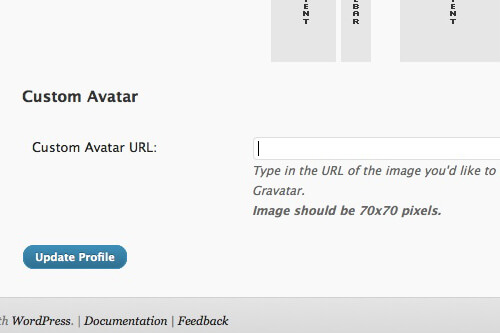
I've created a Custom Avatar feature that extends the built-in avatar functions of WordPress. It adds a "Custom Avatar URL" field to the user's Profile page. If an avatar is provided, it is displayed by the function get_avatar() rather than the gravatar.
The Genesis theme has a great feature called the Author Box . Instead of me having to rebuild it to show my custom avatar, it just works with this solution since I'm extending the built-in avatar functions, not creating new ones.
Adding Custom Avatar Field
We're going to create two functions: one that displays the field on the profile, and one that updates the field when you click "Update".
<?php
/**
 * Add Custom Avatar Field
 * @author Bill Erickson
 * @link http://www.billerickson.net/wordpress-custom-avatar/
 *
 * @param object $user
 */
function be_custom_avatar_field( $user ) { ?>
	<h3>Custom Avatar</h3>

	<table>
	<tr>
	<th><label for="be_custom_avatar">Custom Avatar URL:</label></th>
	<td>
	<input type="text" name="be_custom_avatar" id="be_custom_avatar" value="<?php echo esc_url_raw( get_the_author_meta( 'be_custom_avatar', $user->ID ) ); ?>" /><br />
	<span>Type in the URL of the image you'd like to use as your avatar. This will override your default Gravatar, or show up if you don't have a Gravatar. <br /><strong>Image should be 70x70 pixels.</strong></span>
	</td>
	</tr>
	</table>
	<?php
}
add_action( 'show_user_profile', 'be_custom_avatar_field' );
add_action( 'edit_user_profile', 'be_custom_avatar_field' );

/**
 * Save Custom Avatar Field
 * @author Bill Erickson
 * @link http://www.billerickson.net/wordpress-custom-avatar/
 *
 * @param int $user_id
 */
function be_save_custom_avatar_field( $user_id ) {
	if ( current_user_can( 'edit_user', $user_id ) ) {
		update_usermeta( $user_id, 'be_custom_avatar', esc_url_raw( $_POST['be_custom_avatar'] ) );
	}
}
add_action( 'personal_options_update', 'be_save_custom_avatar_field' );
add_action( 'edit_user_profile_update', 'be_save_custom_avatar_field' );
I've added a description on the first function to help the users add the correct size photo. Make sure your users upload a square photo (or else it will be squished) and that is at least as large as the largest use in the site. On this project, the Author Box displays the avatar as a 70px square, and on the homepage it's a 30px square, so I recommend they upload at least 70x70 photo.
Making it Work
We'll be able to access the custom avatar using get_the_author_meta( 'be_custom_avatar' ). Now let's set up a filter on get_avatar() that uses the custom avatar, if provided.
<?php
/**
 * Use Custom Avatar if Provided
 * @author Bill Erickson
 * @link http://www.billerickson.net/wordpress-custom-avatar/
 *
 */
function be_gravatar_filter($avatar, $id_or_email, $size, $default, $alt) {

	// If provided an email and it doesn't exist as WP user, return avatar since there can't be a custom avatar
	$email = is_object( $id_or_email ) ? $id_or_email->comment_author_email : $id_or_email;
	if( is_email( $email ) && ! email_exists( $email ) )
		return $avatar;

	$custom_avatar = get_the_author_meta('be_custom_avatar');
	if ($custom_avatar)
		$return = '<img src="'.$custom_avatar.'" width="'.$size.'" height="'.$size.'" alt="'.$alt.'" />';
	elseif ($avatar)
		$return = $avatar;
	else
		$return = '<img src="'.$default.'" width="'.$size.'" height="'.$size.'" alt="'.$alt.'" />';

	return $return;
}
add_filter('get_avatar', 'be_gravatar_filter', 10, 5);
This modifies get_avatar() function to perform in the following way:
- If there's a custom avatar, use that.
- If there isn't a custom avatar, check to see if there's a gravatar. If there's a gravatar, use that.
- If there's neither, display the default.
No comments yet