
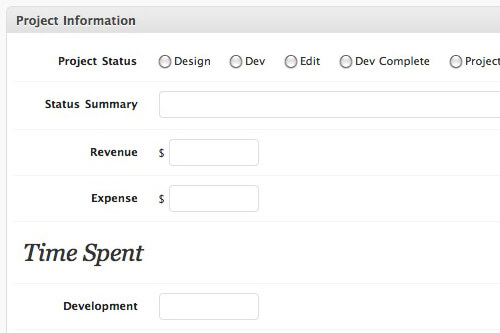
I recently built a Customer Relationship Management system (CRM) for myself using WordPress. I had experimented with a few existing solutions like Salesforce and Sugar, but none worked for me. I spent about 10 minutes creating this solution ( screenshot ) with custom taxonomies and custom meta boxes. In a few months I might review it in more detail after using it for a while.
One feature I'd like to share now is my method of exporting to a spreadsheet. This technique should work for all of the major spreadsheet programs (Microsoft Excel, Google Docs, OpenOffice).
I knew I wanted a way to get my data into Excel for analyzing it, but didn't want to figure out how to dynamically generate an .xls file. So an easy workaround is to render your content in a simple table, then copy/paste it into your spreadsheet.
Create the Template
First you'll need to build a template page for the table (if you're using Thesis see my note below). Here's a start:
Instead of calling get_header(), which would've rendered the actual header, I called wp_head(), which is the hook that runs some essential WordPress code in the header. The goal here is to only display the table so you don't get any extra text coming across to your spreadsheet.
Create a page called "Download", set it to Private, and set the page template to Download. Now you'll be able to see the results of your work on this page.
Before we build the loop that renders all the content, I like to put in the table headers. Inside <table> put the titles of all the fields you'd like exported like this:
Now for the code that actually lists the data. I'm going to do a simple query that just lists all posts. You could customize this query to do whatever you'd like (see query_posts in the Codex for options). You could even make a custom field on your Download page to define the query variables if you will be changing it often and don't want to edit code.
Inside the <tr> you'll put <td>'s for each of your variables. Here's some tips:
- To list the value of a custom field, use
<td><?php echo get_post_meta($post->ID,'field_name',true);?></td>where field_name is the actual name of the field. - To display the publish date, use
<td><?php the_time('m.d.y');?></td> - To list the values of a custom taxonomy in a comma-separated list and without having it link to the taxonomy page, use
<td><?php $poc = get_the_terms( $post->ID, 'poc', '', ', ', '' ); $list = ''; if ($poc) { foreach ($poc as $data) $list .= $data->name.', '; echo $list; } ?></td>where 'poc' is the name of the taxonomy. You could just usethe_terms()but then you'll have links in your spreadsheet. - To list the categories as a comma-separated list and without links, use
<td><?php $cats = get_the_category(', '); $list = ''; if ($cats) { foreach ($cats as $data) $list .= $data->cat_name.', '; echo $list; } ?></td> - To display the post content without having it break your table (which
the_content()would do), use<td><?php echo get_the_content();?></td>
That covers all the major types of data that I used. Let me know if I missed anything.
Using it with Thesis
Thesis is a little different, in that you can't create template pages like normal themes. Based on Kristarella's great post on Creating Thesis Squeeze and Landing Pages , I used filters to remove the header, sidebars, footer and headline area. I then created a function that rendered the table and attached it after the post content. Here's the code to put in custom_functions.php (note that I excluded everything inside the table - that's the same as the code above).
No comments yet