
Mint Social recently hired me to build a custom author page that they could use for themselves and their clients. The requirements were:
- Work natively in Thesis (all built in custom_functions.php - no plugins)
- Allow the author to easily edit his information from the WordPress administration area.
- Lots of information (and almost all optional): Avatar, bio written in HTML, email author link, author's address and map...and links to any social networks the author uses (we have about 35 built into the system)
If you click on my name under this post's title, you can see the end result.
While I can't provide you with the exact code we used, I can show you the tutorials I've written that accomplish each part of this.
First, there's two custom options pages:a site-wide one for the Google Maps API key, and an author-specific one that contains all the author's profile information. Each person who logs in will see their own version of this page.
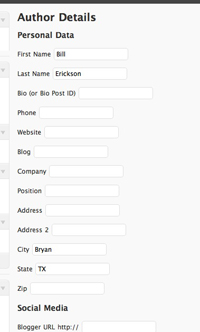
Here is my tutorial on Custom Options Pages . This tutorial actually walks you through setting up a site-wide one. To make a user-specific one, there's a few things you'll have to do differently:
- The add submenu page line should be changed to
add_submenu_page('users.php', 'Author Details', 'Author Details', 'edit_posts', 'author-details', 'author_details_admin');As the Codex explains, this adds it as a submenu to the Users menu and gives access to anyone who has permission to edit posts (so Authors). - Instead of using
update_option(), which updates a site-wide variable, you'll useupdate_usermeta(), which links the variable to the user. That way, the field "Twitter ID" is linked to the user who inputs it, and doesn't show up on other users' profiles. See update_usermeta page in the Codex for information on how to use it. - Likewise, when retrieving the variables to display on the custom author page, you'll use
get_usermeta()rather thanget_option().
So, you've created two options pages: Author Details and Google Maps API Key. Now you need to code the actual author page that uses these pages. Some helpful hints:
- To stick something on the author page, use the hook
thesis_hook_archive_info(). - If you had multiple fields for the address in the options page like I did (Address Line 1, Address Line 2, City...) combine them all into one variable like this:
$fullAddress = $address . ' ' . $address2 . ' ' . $city . ', ' . $state . ' ' . $zip; - Use the Gravatar tutorial to add the author's avatar.
- Use the Google Maps tutorial to add a map (use the
$fullAddressvariable you made above) - For the HTML bio, we originally had a box on the Author Details option page that allowed the author to write it. The client then requested we use an actual WordPress post so that the authors would have at least one post, and they'd be able to use the Visual editor to write their profile. So now in the option page we ask for the Post ID they want to use as their profile. Pick whichever method you prefer.
I'm sorry I can't be more helpful and provide the actual code, but my client hopes to sell this solution. Hopefully you'll be able to hack your own custom author page together.
If you do, please share it in the comments!
No comments yet